Android Adaptive Icon Cropping: Fix the Foreground and Safe Zone
Diagnose a cropped Android icon, adjust the foreground safely, inspect the exported XML, and check the result in a launcher.
A cropped Android adaptive icon usually needs a smaller foreground or a cleaner source layer. Resizing the complete square image often leaves the original background attached to the symbol, so it does not solve the same problem. Start by identifying which part is being clipped, then inspect the foreground and background separately.
This guide uses the current Android icon maker. You can try the original templates without uploading a file, or use artwork you are entitled to modify. Keep a master copy before changing your project resources.
Illustration: an original generated concept, not a screenshot, customer result or platform validation record.
Identify the kind of crop
Compare the icon in more than one mask. If a symbol looks fine in a rounded square but loses its corners in a circle, the symbol is probably too close to the mask boundary. If the symbol is small but surrounded by a white square, the foreground may contain an opaque background. If the entire icon looks like an old version, check the resource selection and launcher cache before redesigning it.
These three symptoms need different fixes. A scale control can move the focal symbol inward, but it cannot remove white pixels already baked into a photograph or a flattened logo. Likewise, exporting a new file does not change a project that still references the previous resource name.
A real scale comparison
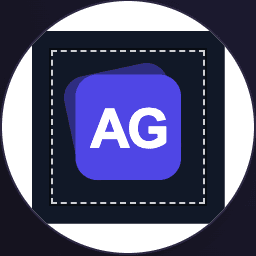
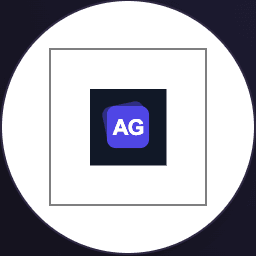
On October 2, 2026, the same Stack template was compared in the browser’s circular composition preview at 125% and 50%. At 125%, the dark source square extends beyond the dashed 66 dp reference and its corners are masked; at 50%, the complete square fits inside it. The AG letters remain visible in both captures. This demonstrates scaling an opaque source, not background removal or a test of every launcher.
Keep the focal artwork in the adaptive safe zone
Android’s adaptive icon guidance defines foreground and background layers on a 108 × 108 dp canvas. Its centered 66 × 66 dp safe zone remains visible under the supported masks. Treat the surrounding area as space for the system presentation, rather than a place for essential letters or details.
Open the safe-zone preview and reduce the foreground until the main symbol fits comfortably. Then switch masks again. Stop when the mark is clear in the small preview; making it tiny simply to avoid every possible edge is not useful either.
For a reproducible design exercise, choose the Stack template in App Icon Maker, enable Android adaptive output and compare two scale settings. This is an original template exercise, not a measured conversion study. Record which setting you chose so you can reproduce the export later.
Check the background independently
The background should fill the layer. A transparent foreground can sit over a solid color or a separate background image. Look for empty corners, unexpected white borders and contrast changes when the launcher crops the composite.
If your source already has a solid square behind the symbol, obtain a separated foreground from your design file. The PNG maker can preserve an existing alpha channel and change the canvas size, but converting an opaque JPEG to PNG does not remove its background.
Inspect the files that the XML uses
After exporting, unpack the ZIP instead of moving it into the project unopened. The current adaptive export includes density folders containing foreground, background and legacy images. Its Android 8.0 resource definition is under res/mipmap-anydpi-v26.
Check that every reference in ic_launcher.xml resolves to a generated file. A typical layer definition is:
<adaptive-icon xmlns:android="http://schemas.android.com/apk/res/android">
  <background android:drawable="@mipmap/ic_launcher_background" />
  <foreground android:drawable="@mipmap/ic_launcher_foreground" />
</adaptive-icon>
Your project may use different resource names. Preserve that project’s naming consistently rather than changing only the XML or only the image. Also check the application’s android:icon reference. If it points to another name, updating ic_launcher will not update the displayed icon.
A checked Android resource integration project
On October 1, 2026, a disposable app imported the current exported Android/res folder and completed assembleDebug with Gradle 9.5.0, Android Gradle Plugin 9.3.1, JDK 21.0.10 and compile SDK 36.1. Its minimum API is 23 and target API is 36. The resulting APK contains launcher activity code, DEX, the resource table and adaptive/legacy icon resources; its debug signature was verified.
Download the original Android verification project
Configure your Android SDK and run this command from the included project. The first build may download public build dependencies.
./gradlew --no-daemon :app:assembleDebugThis confirms project compilation and resource references. It does not establish the installed icon’s crop or appearance on a particular launcher; perform that check on your target device.
Build and check a launcher
Copy the intended resources into the application module, build the app and inspect the installed icon. Use an emulator or device with a supported launcher. Test a second mask when available. The browser preview helps detect composition problems, but it does not reproduce every launcher’s rendering or cache behavior.
If the old icon remains, confirm that the new build was installed and that the manifest references the changed resource. Reinstalling a disposable test app can help distinguish caching from an incorrect file, but avoid removing an app that contains data you need.
Installed simulator example
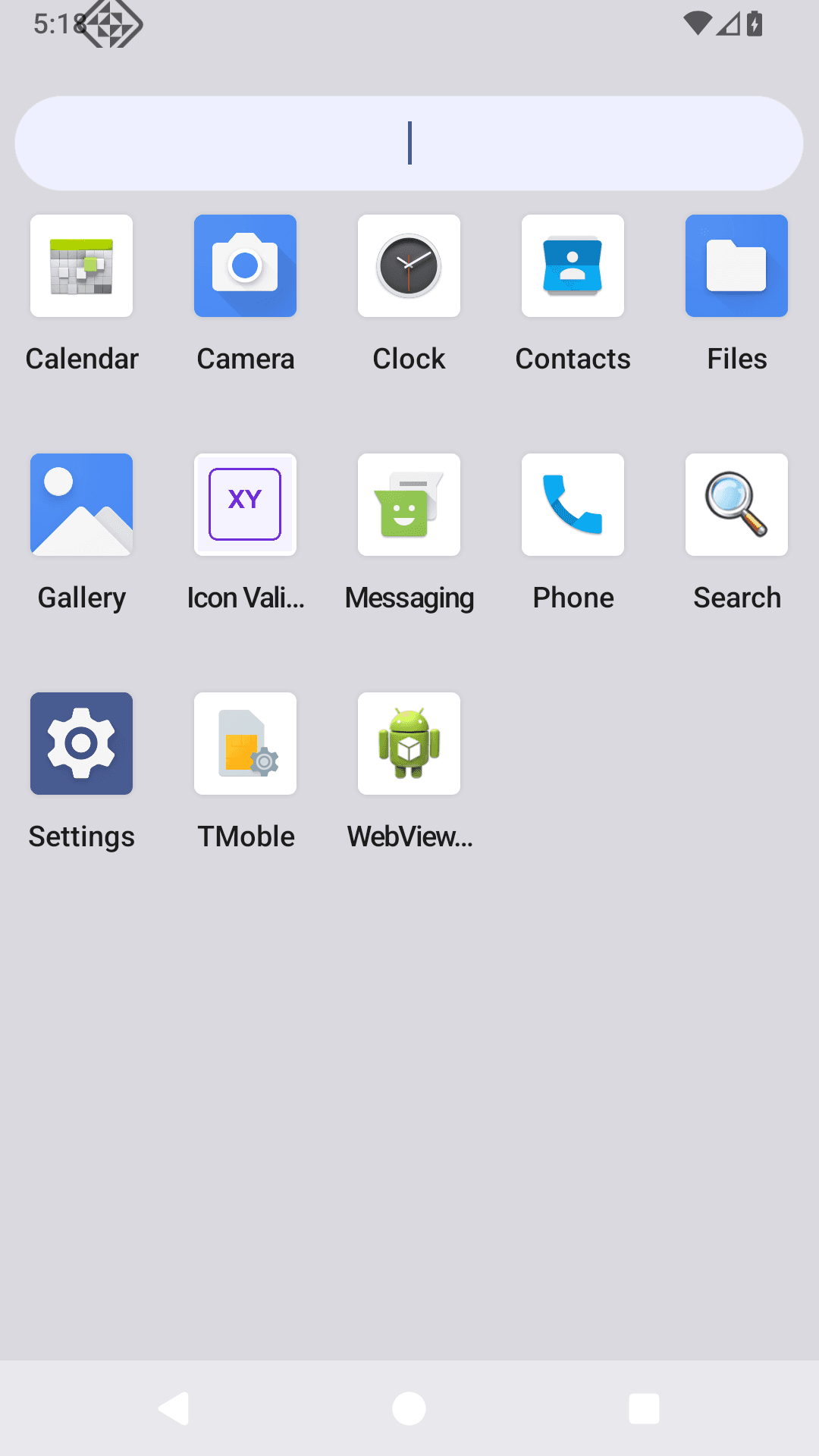
On October 2, 2026, the exported resources were installed in an isolated Android API 36 simulator. The application launched and the XY icon appeared in the app drawer. This checks that launcher and build; other masks and devices need separate checks.
Questions about Android adaptive icon cropping
Why does shrinking the foreground leave a white border?
The border may be part of the source image. Shrinking scales those pixels along with the symbol. Use a genuinely transparent foreground or return to the editable design to separate it.
Can legacy and adaptive icons exist together?
Yes. The export includes legacy images and a version-qualified adaptive XML. Check the actual project resource references and test the Android versions you support.
Does the export provide every themed-icon feature?
The current export supplies the color foreground and background workflow. Review Android’s current monochrome and themed-icon guidance for your application; do not assume that a color ZIP implements every theme option.
Before you export again
Keep the focal symbol in the safe-zone preview, use a background that fills the layer, and inspect XML references before rebuilding. For the actual crop, return to the Android icon maker; for the platform dimensions, use the size guide.
Author

Categories
More Posts
Personal Branding for Developers: Make Your Work Easy to Recognize
Build a developer identity around real work, a clear audience and consistent visual assets, with a practical name, logo and profile checklist.
What Is a Monogram? Choose Initials and Make a Useful Small Logo
Understand monograms, choose initials, compare spacing and small-size readability, and create a local logo or an AI design candidate.
How to Create a Logo with AI: Write a Brief, Compare and Refine
Create a logo with AI using a clear brief, appropriate style and cost review. Compare real results, inspect lettering and prepare useful files.
Newsletter
Stay Updated
Get the latest app design tips and icon trends delivered to your inbox.