Change App Icons on Android: Images and Icon Packs
Choose Android themes, icon packs or supported custom pictures, check launcher limits and restore your original home-screen icons.
To change app icons on Android, first identify what your home-screen launcher supports. A system theme, an icon pack and a single custom image are different inputs. Downloading a PNG does not guarantee that the current launcher can apply it.
This guide separates those routes for personal home-screen customization. It does not treat an Android developer resource ZIP as an installable icon pack.
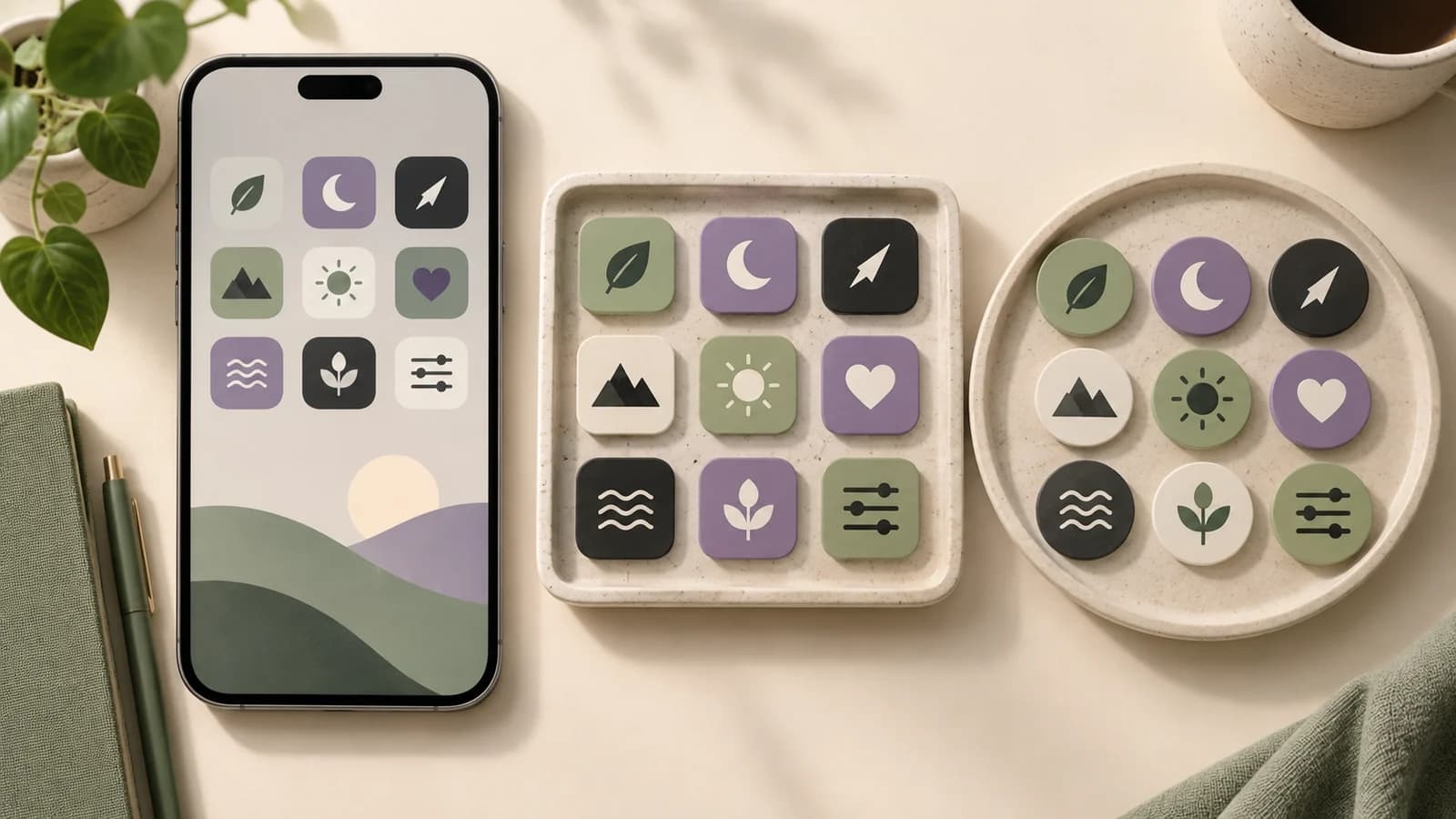
Cover: an original conceptual illustration, not a screenshot of an Android device or a compatibility test.
Check the launcher before choosing artwork
Find the launcher or home-screen app used by your device and review its current help. Manufacturer themes and third-party launchers can offer different options. Keep a record of your current launcher and layout so you can restore them.
For Pixel phones, Google’s wallpaper and icon guide documents the supported style, shape and color options. Availability depends on the device and software. Do not assume that a built-in generated style accepts an arbitrary PNG from your files.
An icon pack is an app that supplies icons to compatible launchers. A single picture is just an image. Choose the route your launcher actually accepts before spending time making a large set of pictures.
Use a theme or an icon pack when supported
Open the launcher’s appearance settings and look for its icon theme or pack selector. Install a pack from its legitimate store listing if that route is supported, then apply it using the launcher’s controls. Review what changes before making further adjustments.
Nova’s official feature page describes icon themes, and its FAQ explains related home-screen options. Check the installed version’s settings; features and purchasing options can change. This is a compatibility example, not a claim that every Android phone needs Nova.
A pack may lack artwork for some installed apps. The launcher may keep the original icon or offer a manual selection. A partial match is a reason to inspect individual entries, not proof that the pack failed to install.
Prepare a custom picture only if the launcher accepts one
Some launchers offer an individual icon editor with an image or gallery picker. When your installed launcher documents that feature, open the app entry’s editing controls, select the icon and choose your prepared image. Test one app before repeating the process.
Other launchers deliberately accept only icon-pack resources. Niagara’s official guide explains individual icon changes and states that images from the gallery cannot be selected. A PNG cannot bypass that input restriction.
For a supported picture workflow, start from an original template or your own image. The PNG resizer preserves proportions on a transparent square. Choose a size suitable for your launcher’s guidance and inspect the saved file before applying it.
Check the result and common problems
Inspect the icon on your actual wallpaper and tap it to confirm it opens the intended app. Check whether your launcher applies a shape, crop or extra background. Keep the symbol readable within that presentation rather than filling every edge.
If nothing changes, confirm that you edited the active launcher and the correct app entry. If only some icons change, review pack coverage. If your picture picker is absent, return to the launcher’s supported inputs instead of trying to apply a developer ZIP.
The home screen and app drawer may have separate settings. Notification badges and themed-color behavior also depend on launcher support. Keep those checks specific to the installed version rather than promising identical behavior on all Android devices.
Restore the previous appearance
Use the launcher’s default icon theme or reset option to undo a pack. For an individual override, use its reset action if available. If you changed the default home app, switch back through the device’s default-app settings.
Do not uninstall a pack or launcher until you have restored the intended appearance and checked your layout. Save original artwork separately so trying another theme does not remove your only editable source.
Questions about Android custom app icons
Can every Android launcher use my PNG?
No. Input support varies. Some accept pictures; others use only compatible icon packs. Check the launcher’s current documentation first.
Can I install Maker’s Android ZIP as an icon pack?
No. Its density folders and XML are resources for an app development project. Use the Android icon maker when preparing your own application’s launcher resources.
Will the icon also change in every system view?
Not necessarily. A launcher override changes the views that launcher controls. App identity and other system surfaces may continue to show the original icon.
Match the artwork to the supported route
Change app icons on Android by choosing a supported theme, pack or picture input. Check one entry and the restore path first. Create custom artwork only after you know how the active launcher will use it.
Author

Categories
More Posts
Add a Generated App Icon to Xcode: Asset Catalog Import and Checks
Import an AppIcon.appiconset into Xcode, select the correct target asset, and investigate missing images, alpha and stale app icons.
How to Create a Logo with AI: Write a Brief, Compare and Refine
Create a logo with AI using a clear brief, appropriate style and cost review. Compare real results, inspect lettering and prepare useful files.
Instagram Logo History: The Camera Motif and the 2016 Redesign
Review Instagram’s documented 2016 icon change and how a familiar motif, simpler silhouette and color can inform an original app mark.
Newsletter
Stay Updated
Get the latest app design tips and icon trends delivered to your inbox.