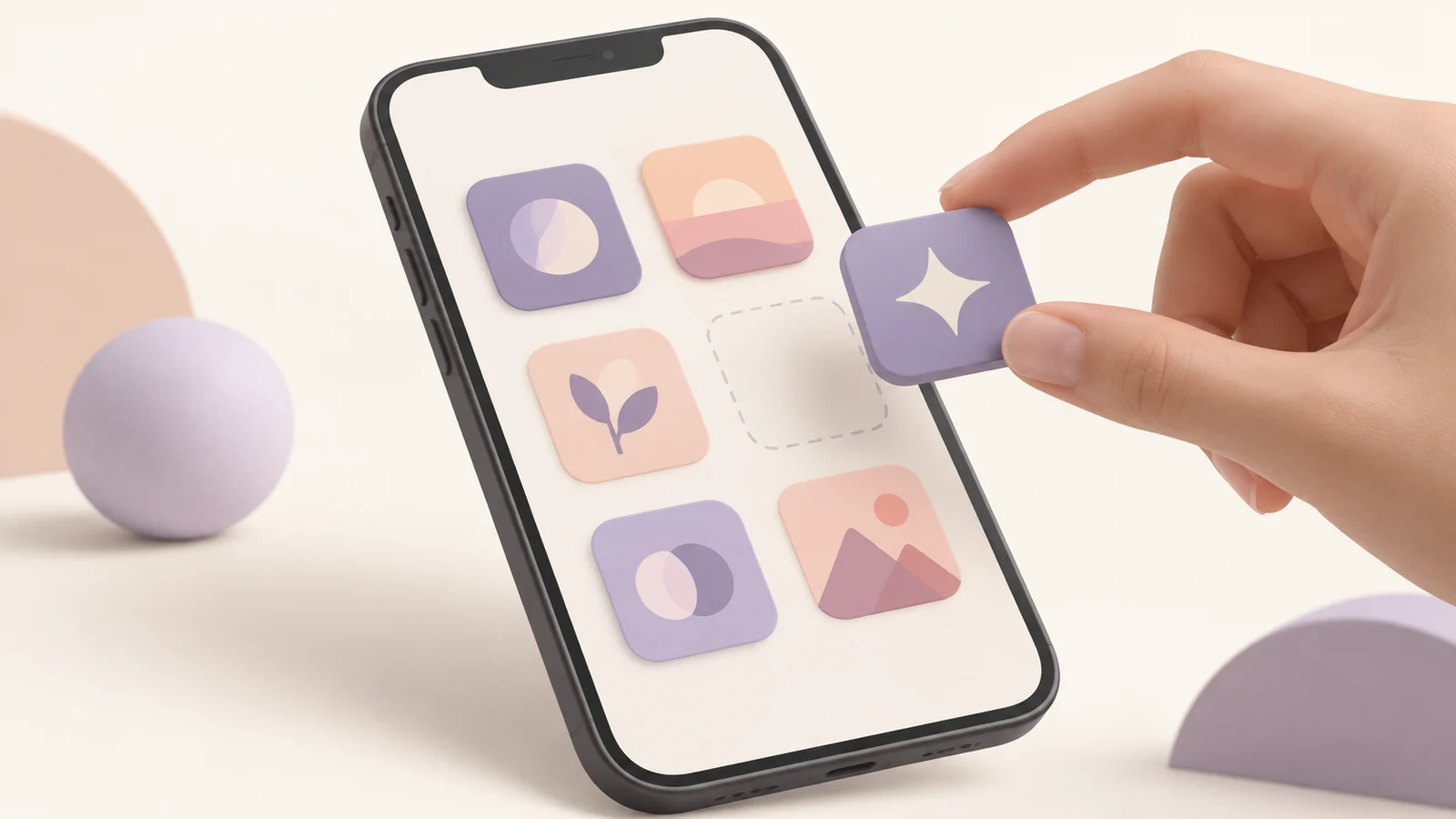
Change App Icons on iPhone with Shortcuts
Create an Open App shortcut, choose a custom home-screen image and learn what changes, what stays and how to restore your layout.
You can change an app’s home-screen presentation on iPhone by adding an Open App shortcut with your own image. The shortcut opens the selected app. It does not replace the app developer’s icon throughout iOS.
This guide explains the Shortcuts route for custom iPhone app icons, using Apple’s documented controls. Keep the original app installed and try one shortcut before rebuilding your entire home screen.
Cover: an original conceptual illustration, not a captured iPhone interface or a device test.
Choose a clear image for the shortcut
Use an image you own or have permission to use. A recognizable symbol usually works better than a long name at home-screen size. Compare the mark against your wallpaper, especially if its edges blend into the background.
The app icon templates provide original geometric starting points. Adjust initials and colors in Maker, or prepare a square PNG with the icon resizer. Transparent padding keeps the artwork’s proportions; inspect the actual home-screen result because the phone’s presentation adds its own context.
Save the chosen image somewhere the image picker can reach. Keep the original source so you can make another size or edit without relying on a screenshot. Enlarging a small picture does not restore missing detail.
Create an Open App shortcut
In Shortcuts, create a new shortcut and add the Open App action. Select the app you want to launch, then run the shortcut once to confirm it opens the correct app. Give it a useful name rather than leaving several indistinguishable shortcuts in your library.
Apple’s guide to the action list explains how to search for actions and view their descriptions. Names and button positions may change across iOS versions; search for the action rather than depending on one screenshot.
A shortcut points to an installed app. An icon image, by itself, cannot install the app or reproduce its features. If the shortcut opens the wrong destination, fix the selected app before changing the artwork.
Change the iPhone shortcut’s home-screen icon
Open the shortcut’s details and choose Add to Home Screen. Set the label and tap its icon to choose a custom image. Apple’s home-screen guide documents taking a photo, selecting a photo or selecting a file.
Choose the prepared image, adjust the crop if offered and add the shortcut. Return to the home screen and open it to confirm the destination. Examine the icon at its normal size, not only in the image picker’s enlarged view.
Work through one app at a time. Reusing a previous shortcut without changing its Open App action is an easy way to give several different-looking icons the same destination.
Understand what the custom image changes
The result is a separate home-screen shortcut. The original icon remains associated with the app in places such as the app library and other system views. The custom shortcut does not inherit every behavior of the app’s normal icon, including its notification badge presentation.
Opening behavior and visual feedback can depend on the iOS version and shortcut. This guide makes no promise of a completely invisible launch transition. Try the specific shortcut on your device before applying the same setup to many apps.
If you are a developer preparing the actual application icon, use the iOS icon generator. An Xcode asset catalog changes the app’s bundled resources; a personal shortcut changes your own home-screen entry.
Organize the layout and restore it safely
Place the shortcut where you want it and keep a clear route to the original app. To reduce duplicate home-screen entries, use the option that removes the original from the home screen while keeping it in the app library. Read the displayed action carefully; deleting the app is different.
To undo the custom appearance, remove the shortcut’s home-screen entry and add the original app back from the app library. Keep the shortcut or delete it from Shortcuts according to whether you may reuse it. Removing the launcher entry is not the same as uninstalling the target app.
Questions about custom iPhone app icons
Can I change every system appearance of an app with Shortcuts?
No. This method adds a separate home-screen shortcut image. The app’s own identity and other system appearances remain controlled by the app and iOS.
Do I need a developer icon ZIP for this?
No. Choose a suitable image using Apple’s supported picker. A ZIP of Xcode resources belongs to a developer project and is not an installable iPhone theme.
Why is the image blurry or cropped?
Check the saved image’s resolution and the crop offered by the picker. Use a clear square source and keep important details away from its outer edges. Test it against your wallpaper at normal size.
Keep the original app accessible
Change app icons on iPhone one shortcut at a time, test the destination and retain the original app. Start with a template or resize your own artwork, then use the shortcut as a personal home-screen entry.
Author

Categories
More Posts
How to Create a Logo with AI: Write a Brief, Compare and Refine
Create a logo with AI using a clear brief, appropriate style and cost review. Compare real results, inspect lettering and prepare useful files.
Google Play Icon Export Checklist: Inspect the Actual PNG File
Check a Google Play icon’s dimensions, PNG encoding, color space, file size and square artwork before preparing your store listing.
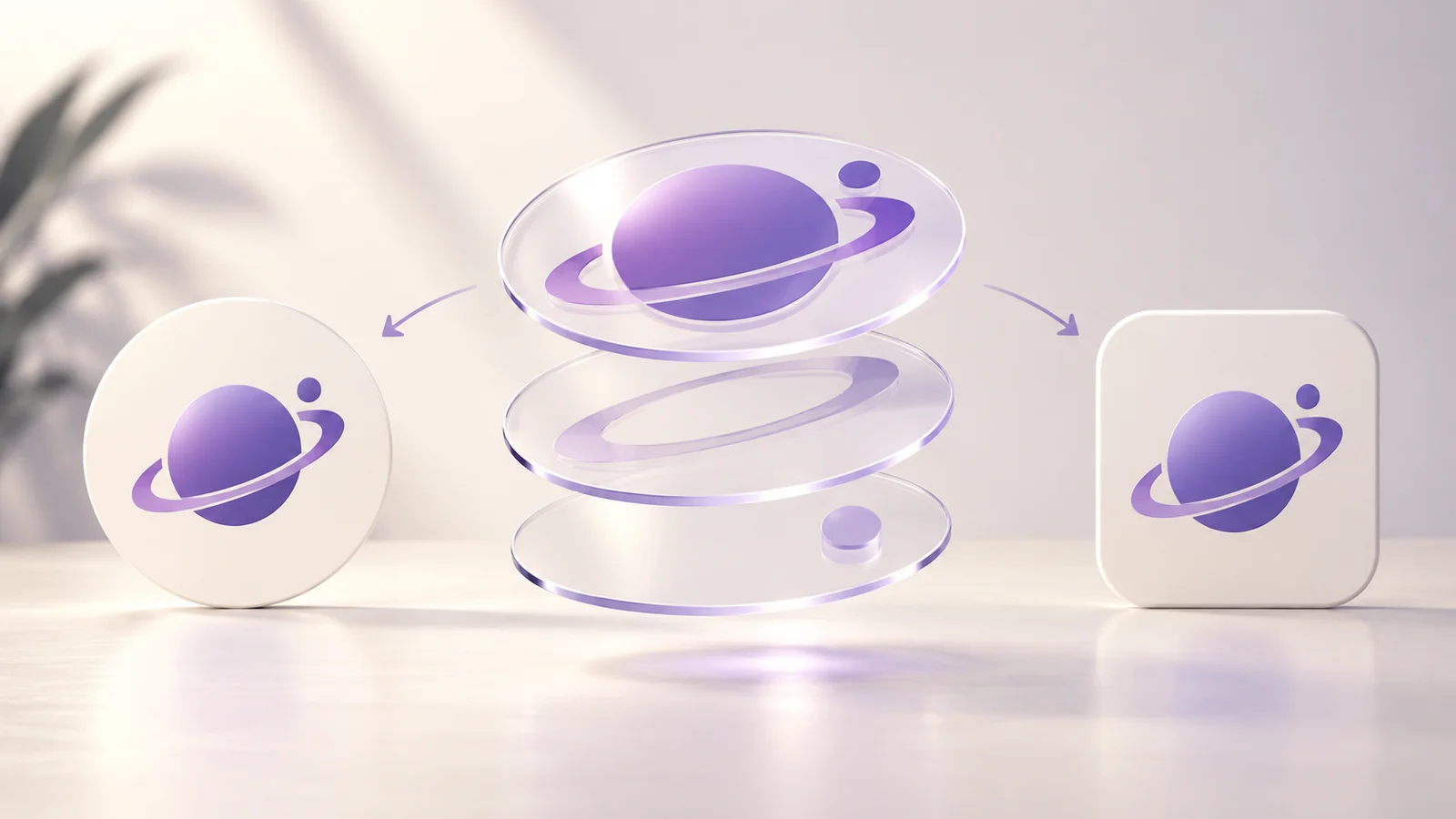
Icon Composer Tutorial: Layers to Xcode
Prepare icon layers, import them into Apple Icon Composer, check appearances and add the saved icon to Xcode.
Newsletter
Stay Updated
Get the latest app design tips and icon trends delivered to your inbox.