PWA Icon Manifest Troubleshooting: Paths, Files and Cached Installs
Fix a PWA icon by checking the deployed manifest, image responses, actual sizes and cached installation instead of only changing the favicon.
When a PWA icon does not update, first inspect the manifest and the image URLs that the browser actually receives. Replacing the tab favicon does not necessarily replace the icon of an installed application. Those resources can come from different declarations and caches.
The favicon and PWA generator prepares the image files and a starter manifest. Deploying that output into your website still requires matching the manifest paths to the files you publish.
Illustration: an original generated concept, not a screenshot, customer result or platform validation record.
Separate the tab icon from the installed icon
An HTML favicon declaration serves the browser tab. The manifest’s icon entries describe images for the web application. A page can therefore show a new tab image while an installed shortcut keeps another image.
Write down where the problem occurs: browser tab, installation prompt, application launcher or already installed app. Also record the browser and operating system. This turns a vague “the icon is broken” report into a reproducible task.
Locate the manifest your page links to
Inspect the page’s manifest link and open that URL directly. Make sure it returns the intended JSON rather than a login page, redirect loop or generic HTML fallback. Check the deployed response, not only the file in your editor.
The current generator exports a Web/site.webmanifest starter and images named android-chrome-192x192.png and android-chrome-512x512.png. The starter uses root-relative icon paths. If you place the images under another directory, update the entries rather than leaving them pointed at nonexistent root files.
Follow each icon URL
MDN’s manifest icon reference explains how src, sizes, type and purpose describe an icon. Relative paths resolve from the manifest URL, while a path beginning with / starts at the origin’s root.
Open every declared image URL and check its response. A visible error page is not a valid image even if the URL ends in .png. A file that opens locally may still be missing from the deployment or blocked by the page’s image policy.
Compare the declared dimensions with the actual image. If a file was resized after generation, update the manifest entry too. Do not use the filename alone as evidence that the image is 192 or 512 pixels.
Declare only the purposes the artwork supports
The current export is a regular icon workflow. It does not create a separate tested maskable image. Adding purpose: "maskable" to an existing icon does not redesign its safe zone.
If you need maskable artwork, prepare it for that use and test the relevant crop. Keep the ordinary icon available as well where appropriate. Use the size guide to review the outputs you have, then consult the browser requirements for the installation experience you want.
A browser-checked manifest and icon fixture
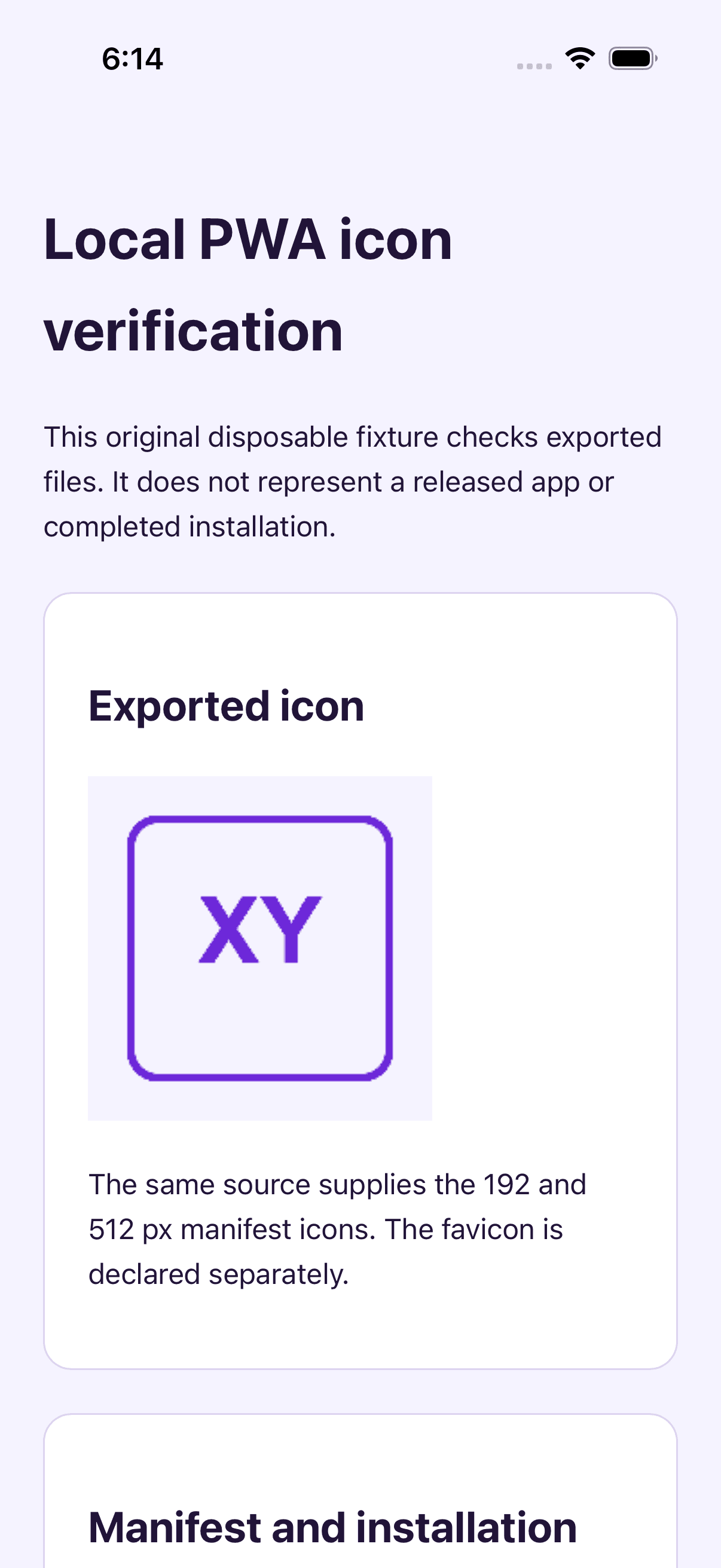
On October 1, 2026, a local Chrome 154 check opened an original test site containing the current exported manifest and icon files. The manifest returned 200 with application/manifest+json; its relative start_url and scope resolved to the test origin root. Both icons returned 200, and browser bitmap decoding confirmed 192 × 192 and 512 × 512 px. Favicon and Apple touch icon declarations were checked separately.
Download the original PWA icon test site
From the extracted fixture directory, run the command below and open http://localhost:8892/. If you move its files under a subdirectory, update the root-relative icon URLs.
python3 -m http.server 8892 --bind localhostThis run verifies parsing, responses and decoded images. No install-promotion event or completed installation was observed, and standalone display was false. The fixture does not provide maskable artwork or a service worker; test the actual installation separately.
Inspect the browser before clearing everything
Open the browser’s application or manifest inspection tools. Look for the parsed manifest, icon previews and fetch errors. Then inspect network responses for the manifest and images. These observations distinguish a wrong URL from an old cached response.
For a disposable test installation, remove the installed test app and reinstall after verifying the new resources. If you also clear site data, understand that this can remove local application data. Prefer targeted checks before deleting a real user’s stored information.
Changing an image URL to a deliberately versioned resource can make deployment and caching behavior easier to track. Update the manifest reference and keep a record of which version was installed. Do not generate random URLs on every request; stable versioned assets are easier to debug and cache.
Test installation as a separate workflow
MDN’s installability guide describes the broader requirements. Valid icons are part of the process, but icon export alone does not make a website installable on every browser or operating system.
Use a controlled test site, the actual deployed manifest and the browser you intend to support. Record whether the manifest loaded, the images were fetched and the installed representation used the intended artwork. A desktop check should not be reported as a phone installation test.
An actual Safari installation
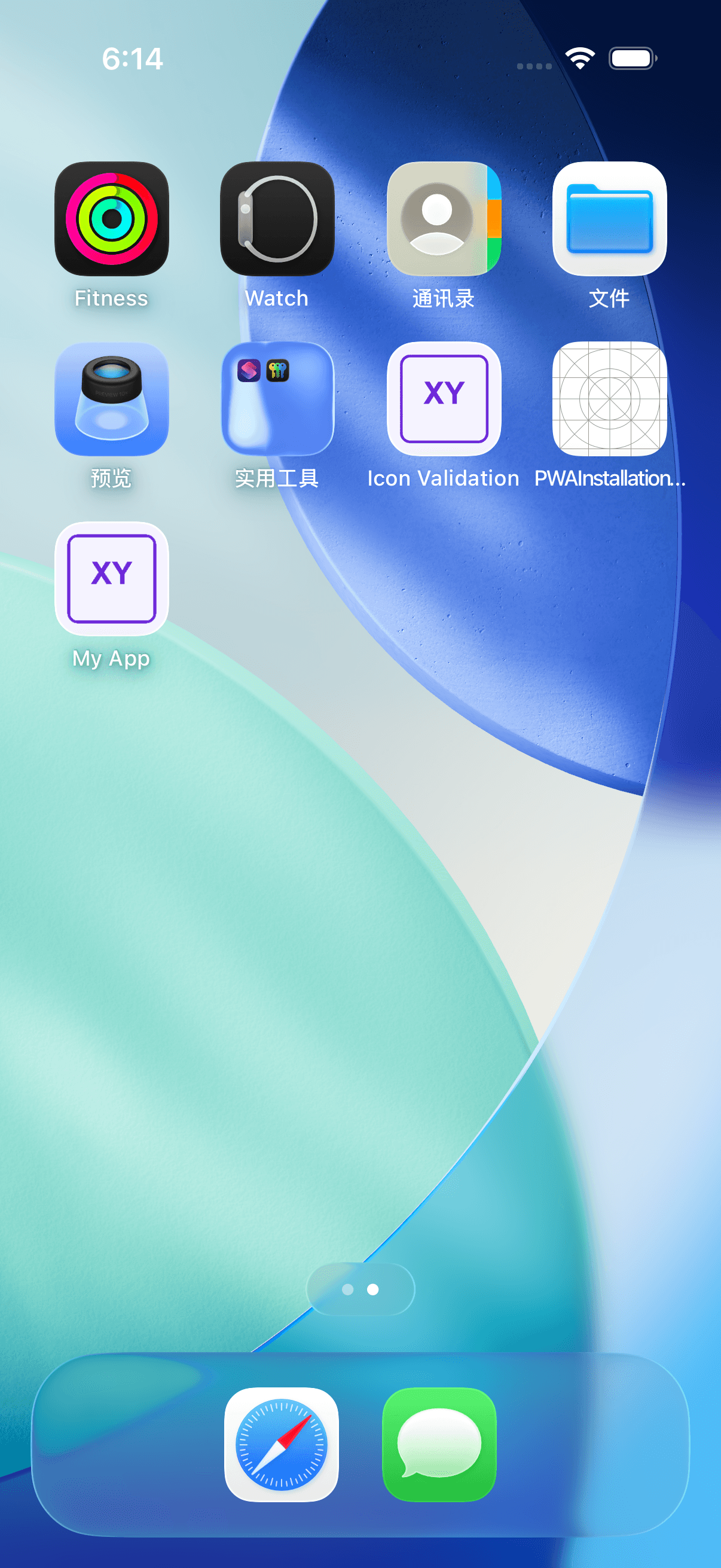
On October 2, 2026, the same fixture was added to the home screen in an isolated iPhone 17 simulator with iOS 26.5 Safari. “Open as Web App” was enabled. The My App icon used the original XY artwork; tapping it opened the fixture in a separate Web application without Safari’s address bar. This verifies that local Safari workflow, not Chromium installation, offline support or physical-device behavior.
Following Apple’s Safari instructions, open the site, choose More → Share → Add to Home Screen, keep Open as Web App enabled and tap Add. Then launch the new icon and check the artwork and destination. The fixture still provides no service worker or dedicated maskable artwork.
Questions about PWA manifest icons
Why did the tab icon change but the installed icon did not?
Check the separate favicon and manifest declarations, then the existing installation’s cache. The new favicon may be correct while the manifest still references another file.
Can I simply rename a file to match the manifest?
You can align filenames, but also inspect the actual image format and dimensions. Renaming does not convert or resize the image.
Are all browsers expected to show the same result?
No. Installation interfaces and supported icon purposes vary. Test your target browser and device instead of assuming one preview covers them all.
Finish with a reproducible check
Confirm the manifest URL, follow its image references, verify the actual files and test a fresh disposable installation. If you need replacement assets, return to the PWA generator.
Author

Categories
More Posts
YouTube Logo History: The 2017 Redesign and Its Small-Screen Lesson
Explore YouTube’s documented 2017 logo redesign, the relationship between icon and wordmark, and lessons for an original channel identity.
Change App Icons on iPhone with Shortcuts
Create an Open App shortcut, choose a custom home-screen image and learn what changes, what stays and how to restore your layout.
Change App Icons on Android: Images and Icon Packs
Choose Android themes, icon packs or supported custom pictures, check launcher limits and restore your original home-screen icons.
Newsletter
Stay Updated
Get the latest app design tips and icon trends delivered to your inbox.