AI App Icon Export: Check the Source and ZIP
Move an AI logo into App Icon Maker, inspect its small-size readability and platform masks, and export the resources for your project.
An AI app icon is source artwork, not a finished platform resource package. Once you have a result worth using, inspect its lettering and silhouette, prepare the platform treatment and export the resources your project needs.
AppIconGenerator separates these jobs. The AI Icon Generator for Apps creates images using credits. The App Icon Maker previews and resizes the source in your browser. That local platform export does not consume additional AI credits.
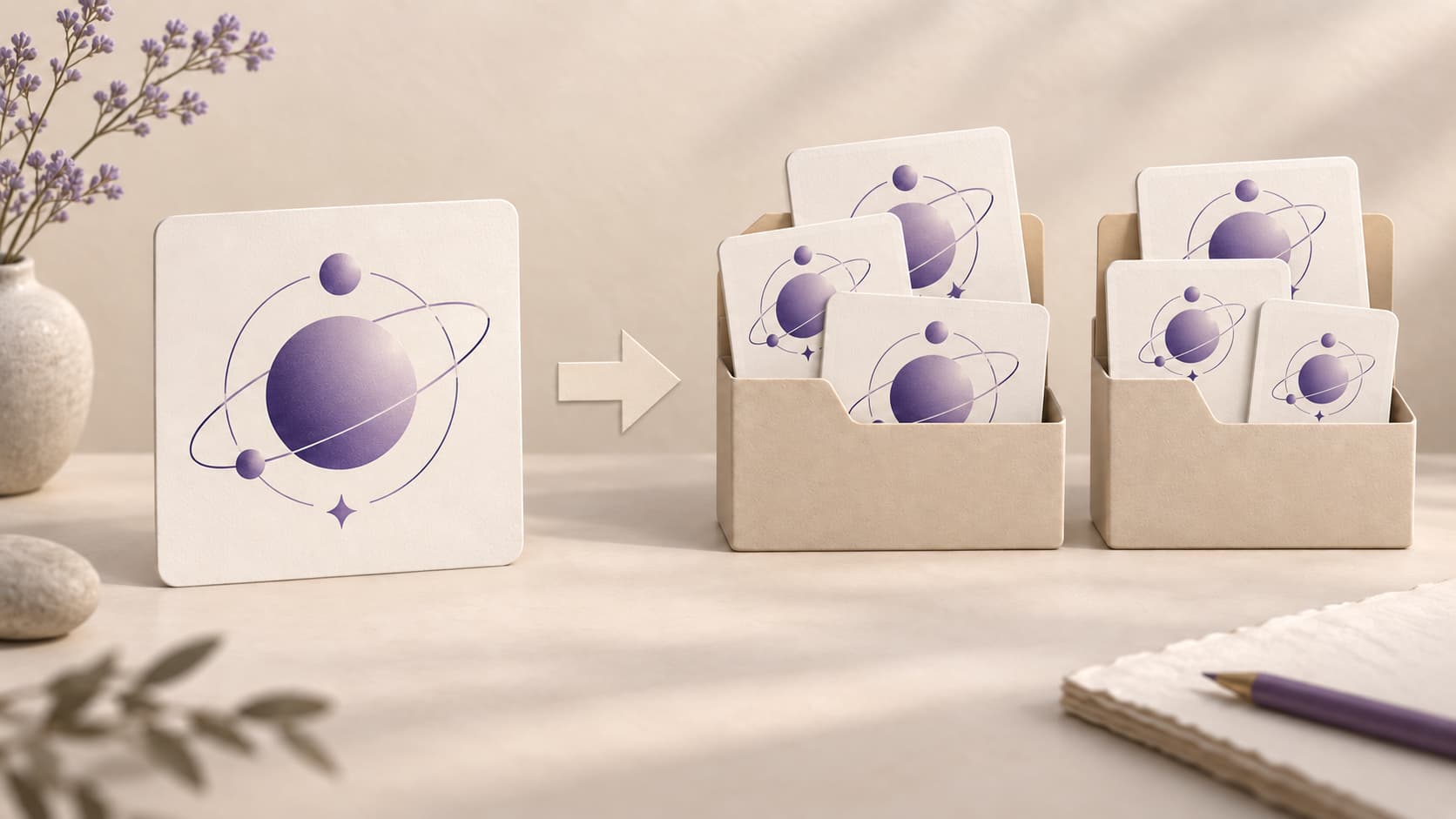
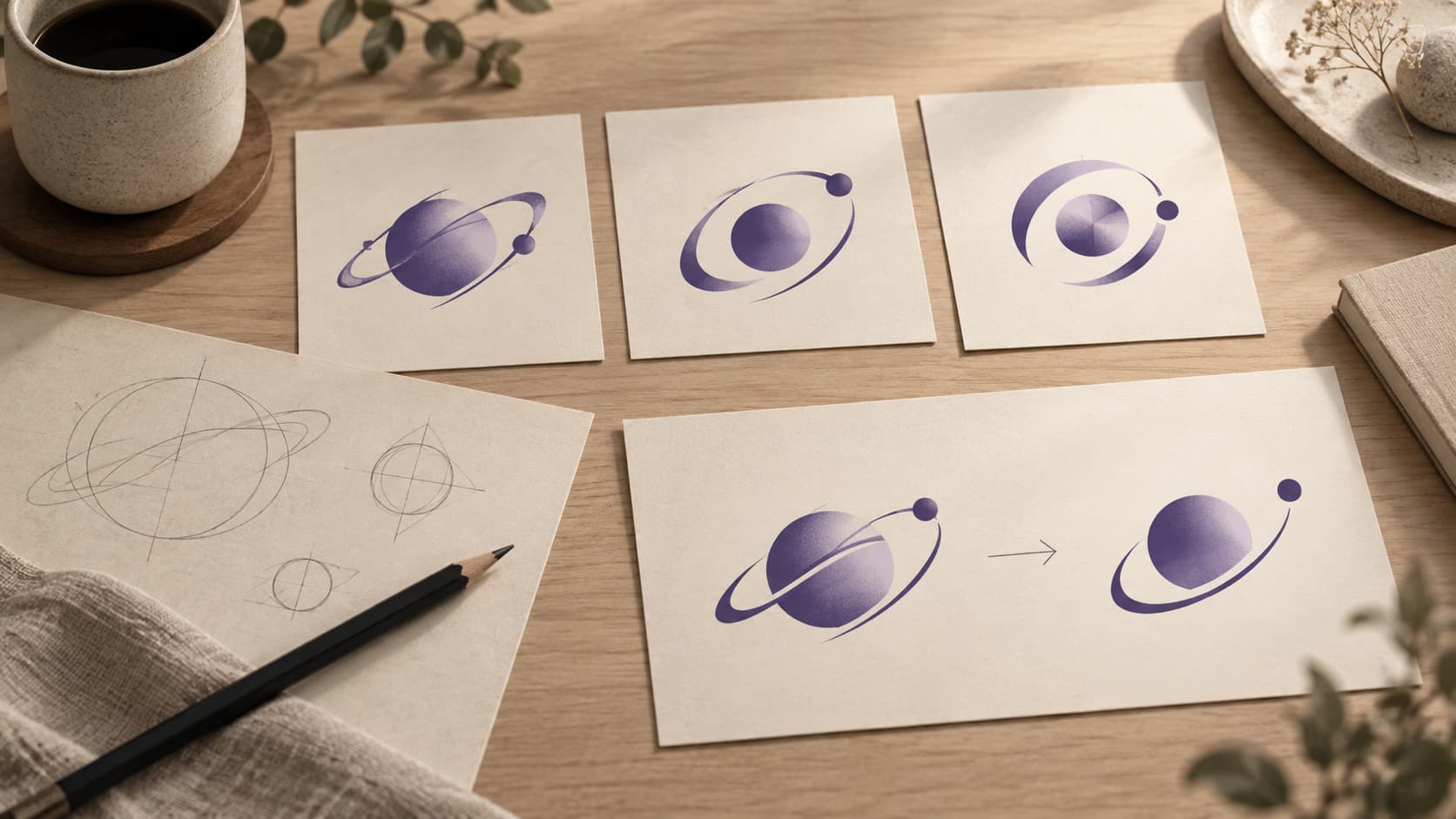
Illustration: an original generated concept, not a screenshot, customer result or platform validation record.
Review the AI result before exporting
Look at the entire image, not only its thumbnail. Check whether the requested brand name is spelled correctly, the focal symbol is clear and the background fits the destination. Generated lettering and small details need human review.
Then inspect the image at 32 and 64 pixels. A texture that looks impressive at a large size can become noise at launcher size. If the mark needs a different composition, refine it before preparing dozens of derived files. Resizing cannot repair an incorrect letter or an unclear shape.
The output is raster PNG artwork. The visual editor can adjust composition and add elements, but it does not automatically separate the generated image into editable vector layers. If your project requires a genuine vector mark, plan that design work separately.
Send the chosen result to App Icon Maker
On the result card, select Export platform sizes. The application reads the authenticated image and stages it in the current tab’s session before opening Maker. The URL contains a source marker, not the image data or your prompt.
The transfer has practical limits: supported raster formats, a 3 MB size cap and a ten-minute lifetime. A blocked browser storage setting or a larger image can prevent automatic transfer. In that case, download the result and upload the PNG directly into Maker. The AI result remains available in your private work history.
Use the specific result you selected. If you compare several candidates, finish the transfer from the chosen card and confirm the source preview in Maker before downloading. This avoids accidentally preparing the sizes of a previous candidate.
Select only the required platforms
Choose the platform outputs for the project you are working on. The preview helps you inspect how each platform will frame the same artwork, while the exported folders have different responsibilities.
For iOS, check the square source and system mask. For Android adaptive icons, check the foreground safe zone and separate background settings. For Web/PWA, inspect the manifest files and paths when you deploy them. Do not assume that a single flattened image is already a correct foreground layer for every adaptive use.
The iOS and Android comparison explains these differences. Use the size guide when you need a specific output dimension rather than changing the source blindly.
Export and inspect the ZIP
Download the current configuration, unpack the ZIP and check the actual files. Inspect filenames, dimensions and resource references. A completed browser export proves that files were packaged; it does not prove that Xcode, Android Studio or an installation flow accepts them.
Keep the exported ZIP and the source result until project integration is complete. If you change the source or platform settings during export, start a fresh export for the new configuration. Maker suppresses stale export results rather than treating them as the latest design.
For a release workflow, record the selected image, export settings, date and platform import result. These are practical troubleshooting notes, not evidence of store approval.
Understand where the processing happens
AI creation sends the prompt and any approved reference to the image provider. The generated work is private by default in the application. The local Maker uses the transferred or uploaded image in the browser for previews and ZIP creation.
Review the displayed credits before starting a new AI task. A failed image releases eligible reserved credits under their original expiry rules. Local resizing has a different cost and processing model, so it should not be described as another paid AI generation.
An authorized result carried into Maker
On October 2, 2026, an authorized test used DeepSeek V4 Flash to suggest names for a fictional offline notebook. CorePad was selected and carried into the Wordmark preset. One standard GPT Image 2.5 Flare generation produced a 1024 × 1024 PNG. The actual Export platform sizes action loaded that private result into Maker, and the browser prepared an iOS/Android ZIP with 40 PNGs and their resource definitions. Naming reserved 1 app credit and the logo reserved 5; resizing added no AI charge. These were the prices observed in this test, not a permanent quote.
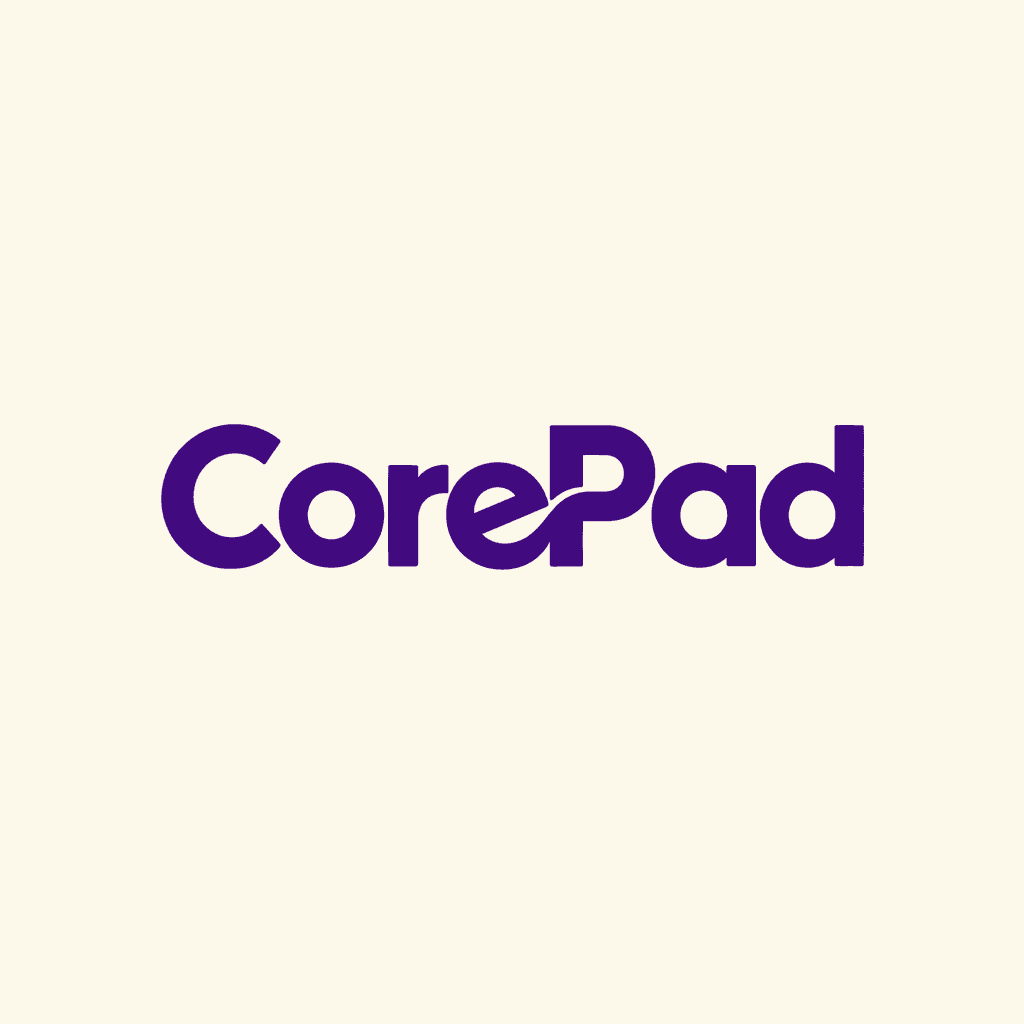
Download the actual CorePad platform export
This is an authorized original test output, not a customer outcome, a uniqueness guarantee or a store submission. Check the lettering and native project before using the files.
Questions about AI app icon export
What if automatic transfer fails?
Download the PNG and upload it into Maker. This also works if you move to another browser or the staged image has expired.
Can I upload a screenshot of the result instead?
Prefer the downloaded original. A screenshot can include presentation padding or reduce quality, making the later crop and size export harder to predict.
Does the ZIP make the artwork unique or trademark-ready?
No. Exporting sizes changes the technical files, not the originality or legal eligibility of the design. Review the artwork and applicable provider terms separately.
Keep the workflow connected
Choose and inspect the AI source first, confirm that Maker loaded that image, then preview and export only the needed platforms. Finish with the actual project import rather than a large-image preview alone.
Author

Categories
More Posts
Instagram Logo History: The Camera Motif and the 2016 Redesign
Review Instagram’s documented 2016 icon change and how a familiar motif, simpler silhouette and color can inform an original app mark.
Add a Generated App Icon to Xcode: Asset Catalog Import and Checks
Import an AppIcon.appiconset into Xcode, select the correct target asset, and investigate missing images, alpha and stale app icons.
How to Create a Logo with AI: Write a Brief, Compare and Refine
Create a logo with AI using a clear brief, appropriate style and cost review. Compare real results, inspect lettering and prepare useful files.
Newsletter
Stay Updated
Get the latest app design tips and icon trends delivered to your inbox.